
How To Personalise The Email Content For The "Order Now With Customer - Customers Confirmation Email"
When sending emails to your customers, QuoteCloud enables you to customise the email content for each of the different types of emails that can be sent to your customers when sending a sales quote.
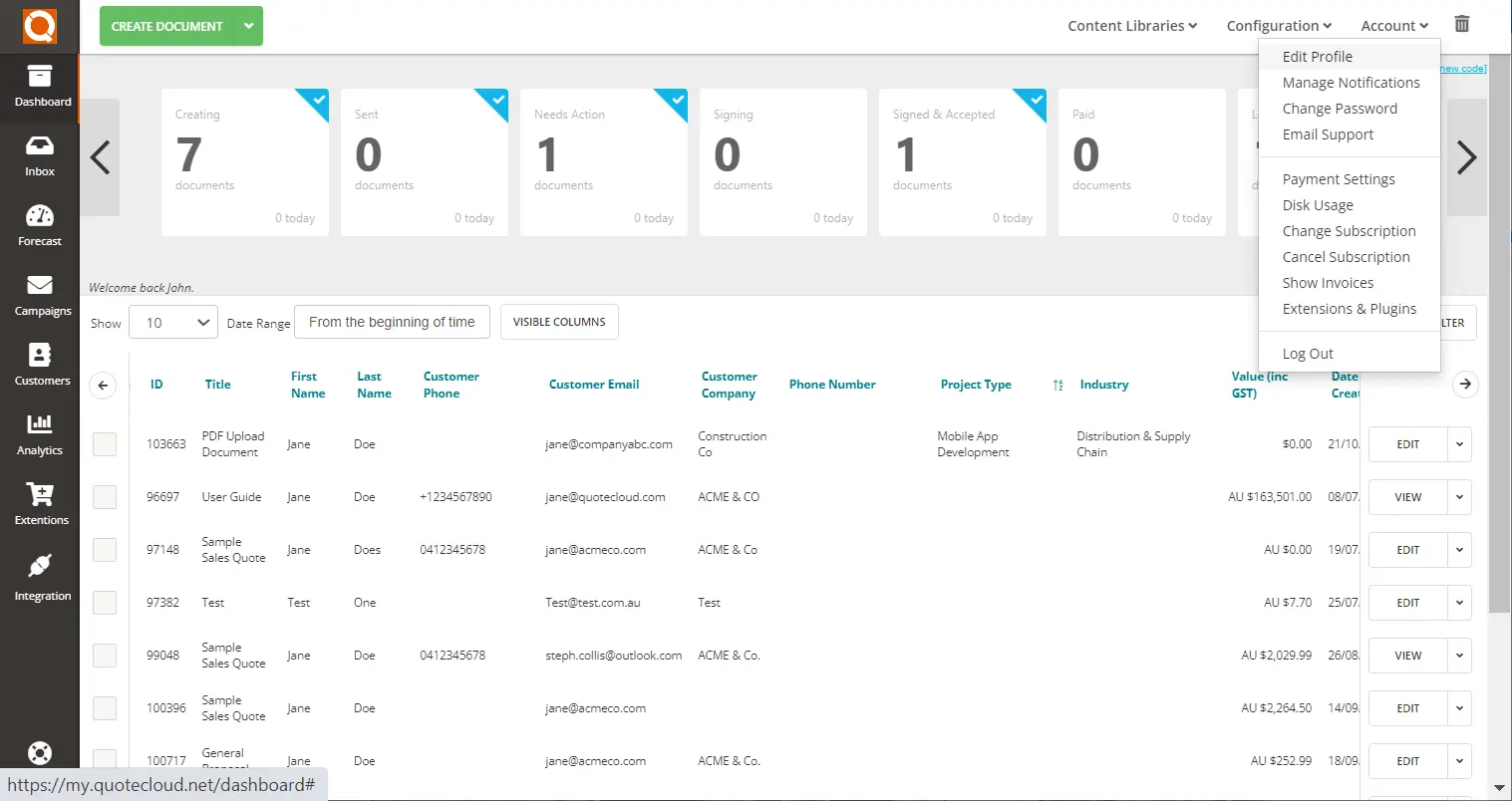
The default email content is already entered, to avoid the risk of companies accidentally sending blank emails. To tweak this content to your personal profile's needs, select Account > Edit Profile.
Once in the Edit Profile Settings, click on the Email tab. This section has pre-drafted content for the following types of emails that can be sent through QuoteCloud:
- Sending Documents
- Revising Documents
- Order Now With Customer - Customers Confirmation Email
The pre-drafted content can be set at a company level and will be used as the default content for all emails sent through QuoteCloud. But to provide your customers with a more personalised experience, you are able to customise the email content for your own profile to help match your tone of voice and contact details etc.If all toggles are shown to the left and displayed as white, this means that the content being used is the company level default content.
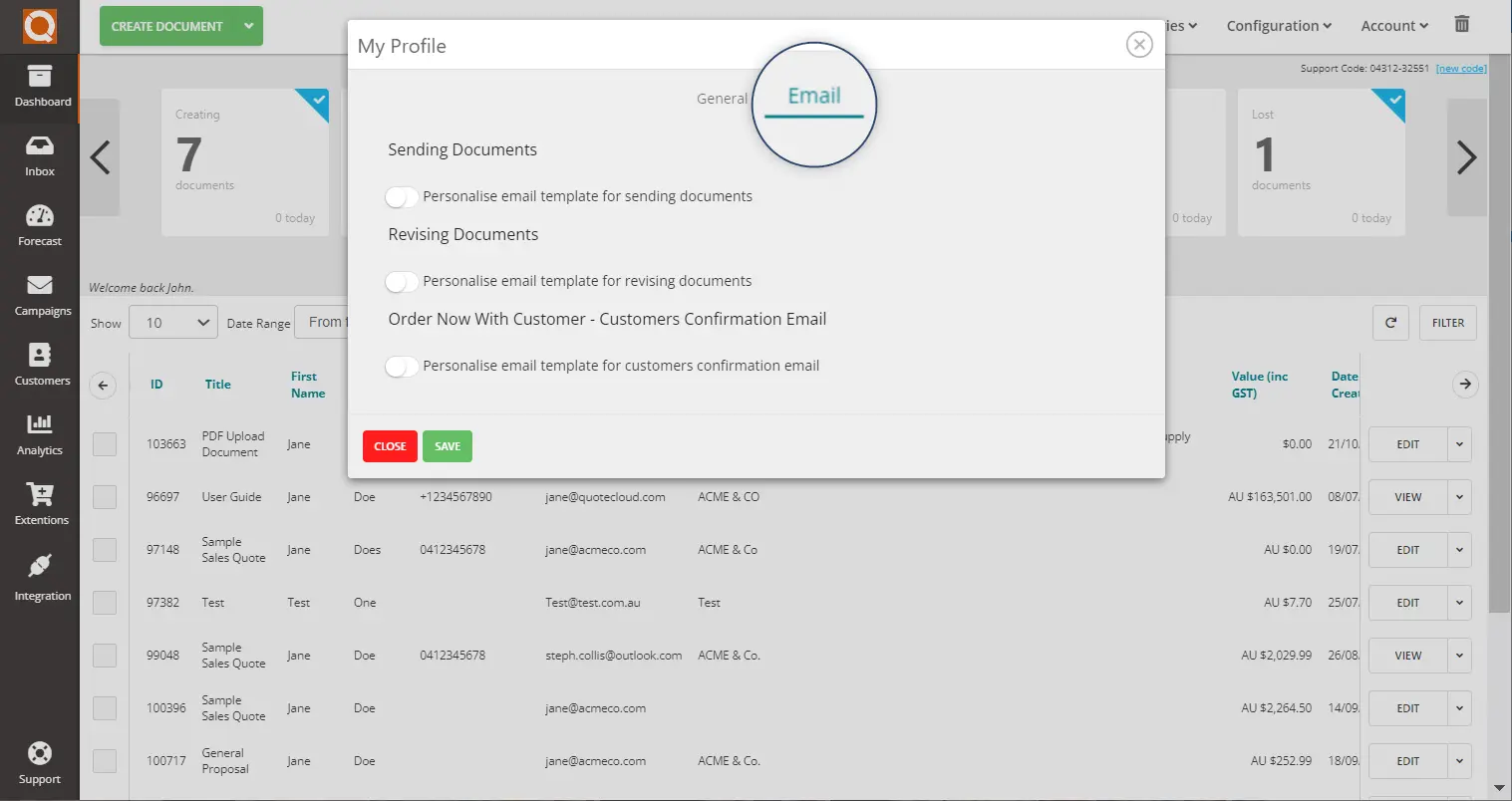
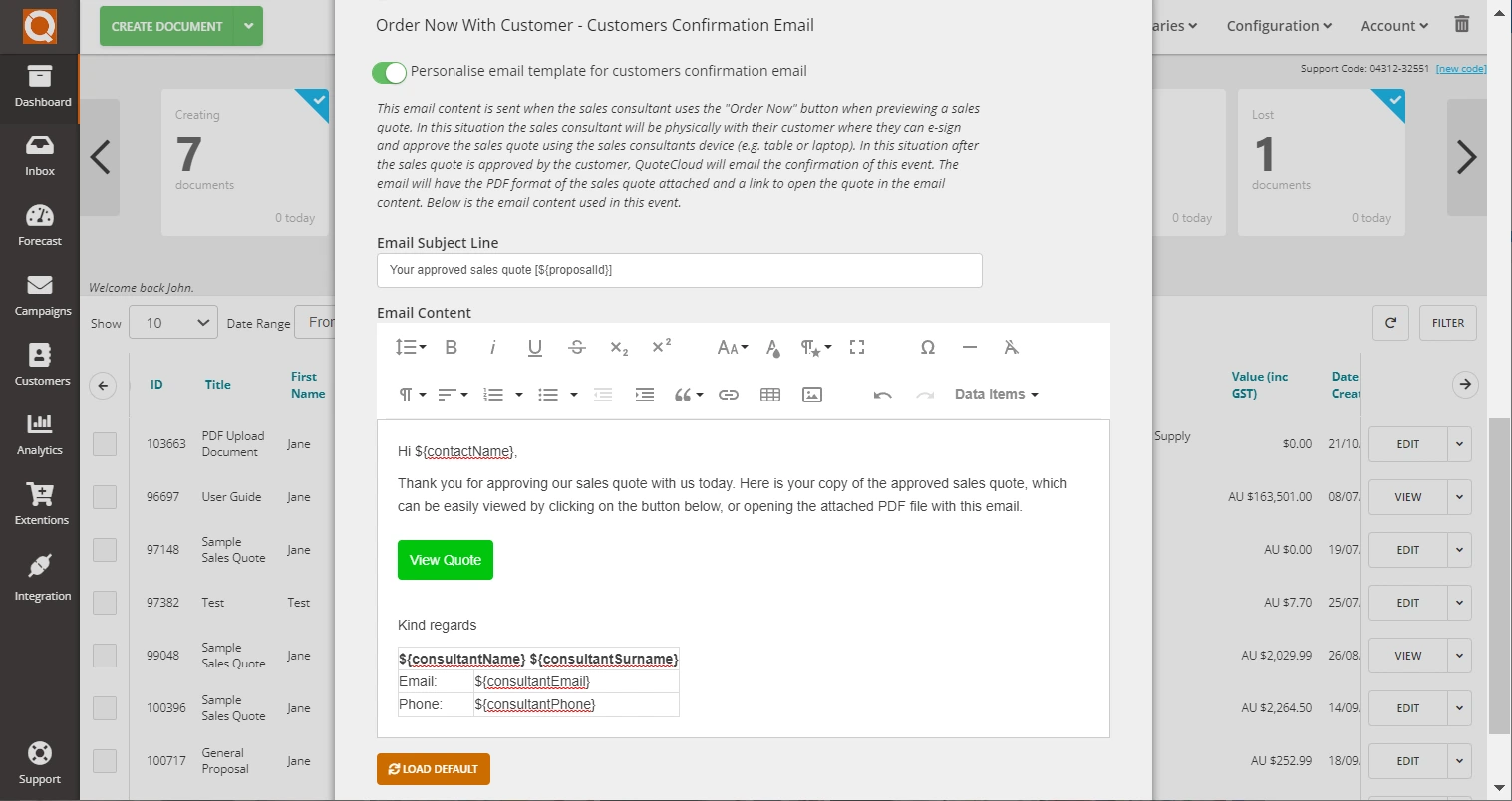
By switching the toggle to the right (will display green when active), this will open the editable content section.
As we are wanting to change the default content for order confirmation emails, we need to switch the third toggle.
To edit the email content, you can either copy and paste from an existing email template and adjust, or format a new one in the content editor in the Email Company Settings.
It is recommended that the merged data fields (e.g. ${consultantEmail}) are utilised as much as possible as this allows for QuoteCloud to automatically input the relevant consultant / sales team member's information in place before sending the email to a customer.
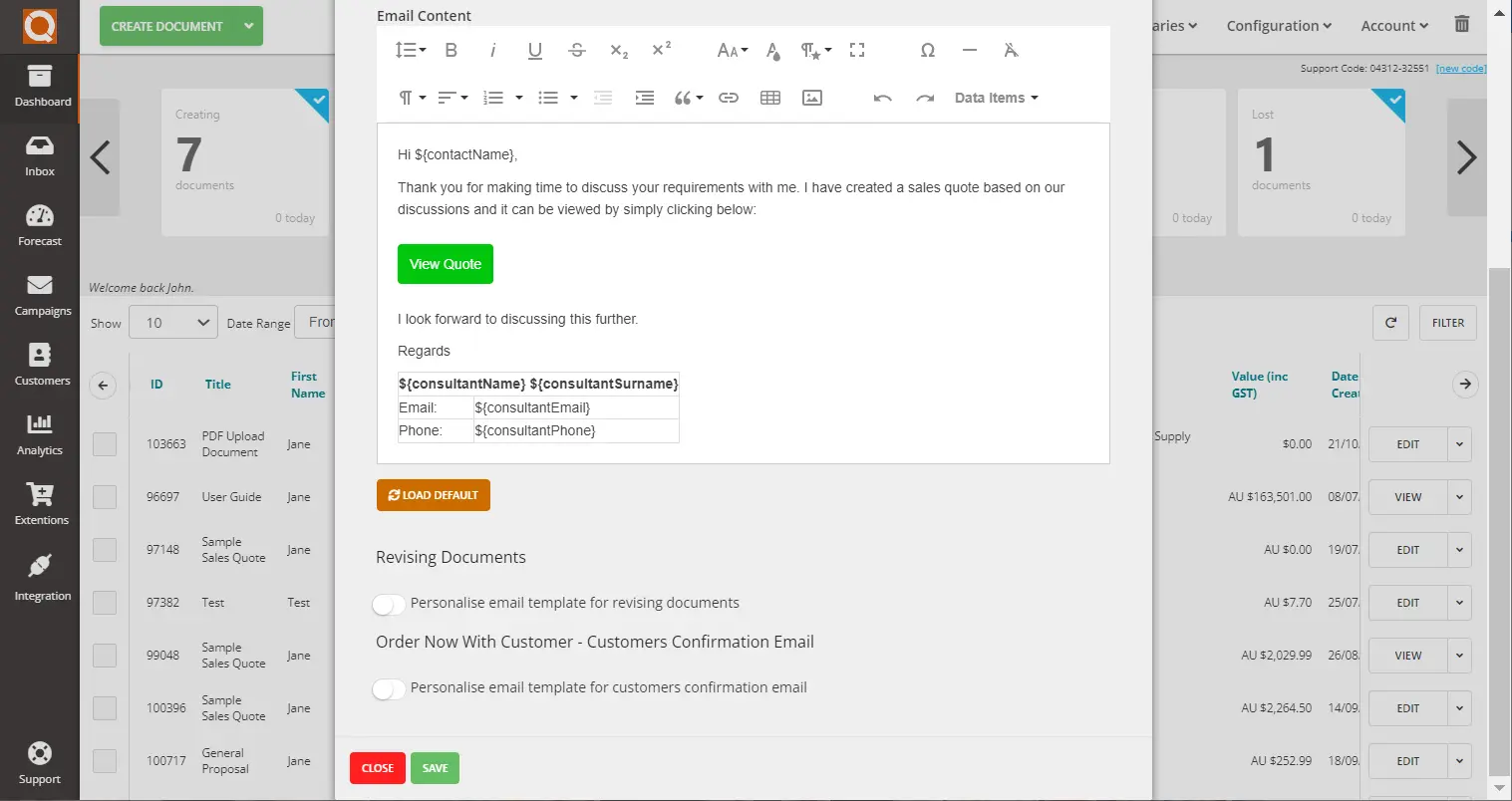
Be sure to scroll down to the bottom and click Save to keep your changes.
Related User Guide Topics
Frequently Asked Questions
What is the "Order Now With Customer - Customers Confirmation Email" in QuoteCloud?
The "Order Now With Customer - Customers Confirmation Email" is the default order-confirmation message QuoteCloud sends to customers after they place an order via a sales quote. It is one of the pre-drafted email types available in the Email tab of your QuoteCloud profile.
Where do I edit the confirmation email content in QuoteCloud?
Open QuoteCloud and go to Account > Edit Profile, then select the Email tab. In that section you will see pre-drafted content for Sending Documents, Revising Documents and Order Now With Customer - Customers Confirmation Email. Use the Email tab editor to personalise the order confirmation email for your profile.
How do I switch from the company default to my personal email content?
If a toggle is displayed to the left and white, your profile is using the company-level default content. Switch the relevant toggle to the right (it will display green when active) to open the editable content area. For the order confirmation email specifically, toggle the third option to the right to enable editing for that message.
What steps do I follow to edit the order confirmation message?
After switching the third toggle to active, open the editable content area and either paste text from an existing template or create a new message using the content editor in the Email Company Settings. Make your changes, verify merged fields are correct, then scroll down and click Save to apply the changes to your profile.
What are merged data fields and which should I use?
Merged data fields (for example ${consultantEmail}) are placeholders QuoteCloud replaces automatically with the correct consultant or sales team information when sending the email. It is recommended to use merged fields wherever possible so each outgoing confirmation contains the right contact details and personalisation for the recipient.
If I want to return to the company default email later, how do I do that?
To revert to the company-level default content, switch the toggle back to the left (white). This will disable the editable content in your profile and QuoteCloud will use the company default message again.
What are best practices for personalising the confirmation email?
Keep the tone consistent with your brand, include clear contact details (use merged fields), add a concise order summary or next steps, and include a signature or call-to-action. Test-send the email to yourself after editing to confirm merged fields populate correctly and formatting looks right.
Do these email customisations apply company-wide or only to my profile?
Pre-drafted content can be set at the company level and will act as the default for everyone. Personal edits made via Account > Edit Profile > Email affect only your profile (unless you toggle back to company default). Use the toggles to choose whether your profile uses the company default or your customised message.